When I tried to use Windows Server 2025 in VMware Fusion on my Mac, I couldn’t find the ISO file on the Microsoft website. The ISO file must be in ARM architecture so that it can be run on VMware Fusion on a Mac. After watching many videos on YouTube, I found this website, https://uupdump.net/, which helped me to get the ISO file.
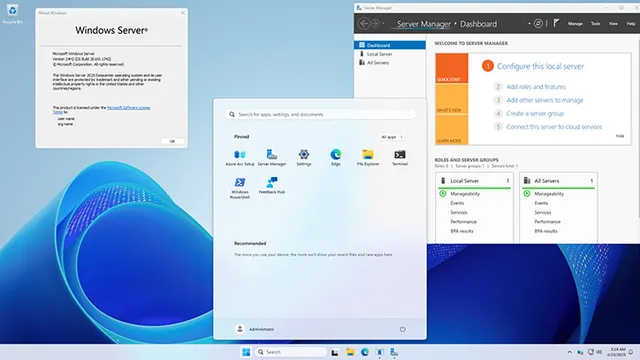
Download Windows Server 2025
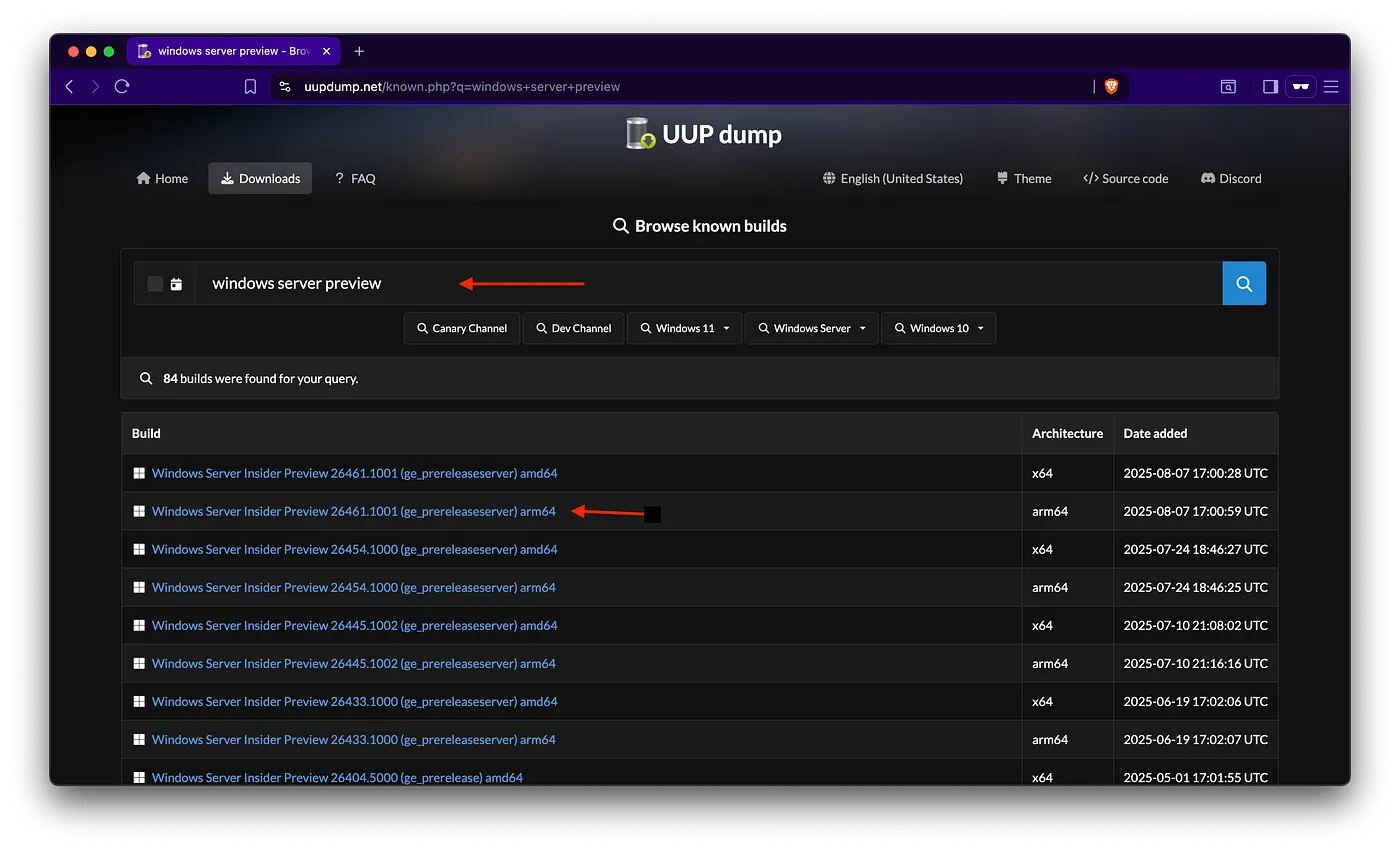
- Go to https://uupdump.net/ and type ‘Windows Server Preview’ into the ‘Browse’ field
- Select the language you want to use, then Next
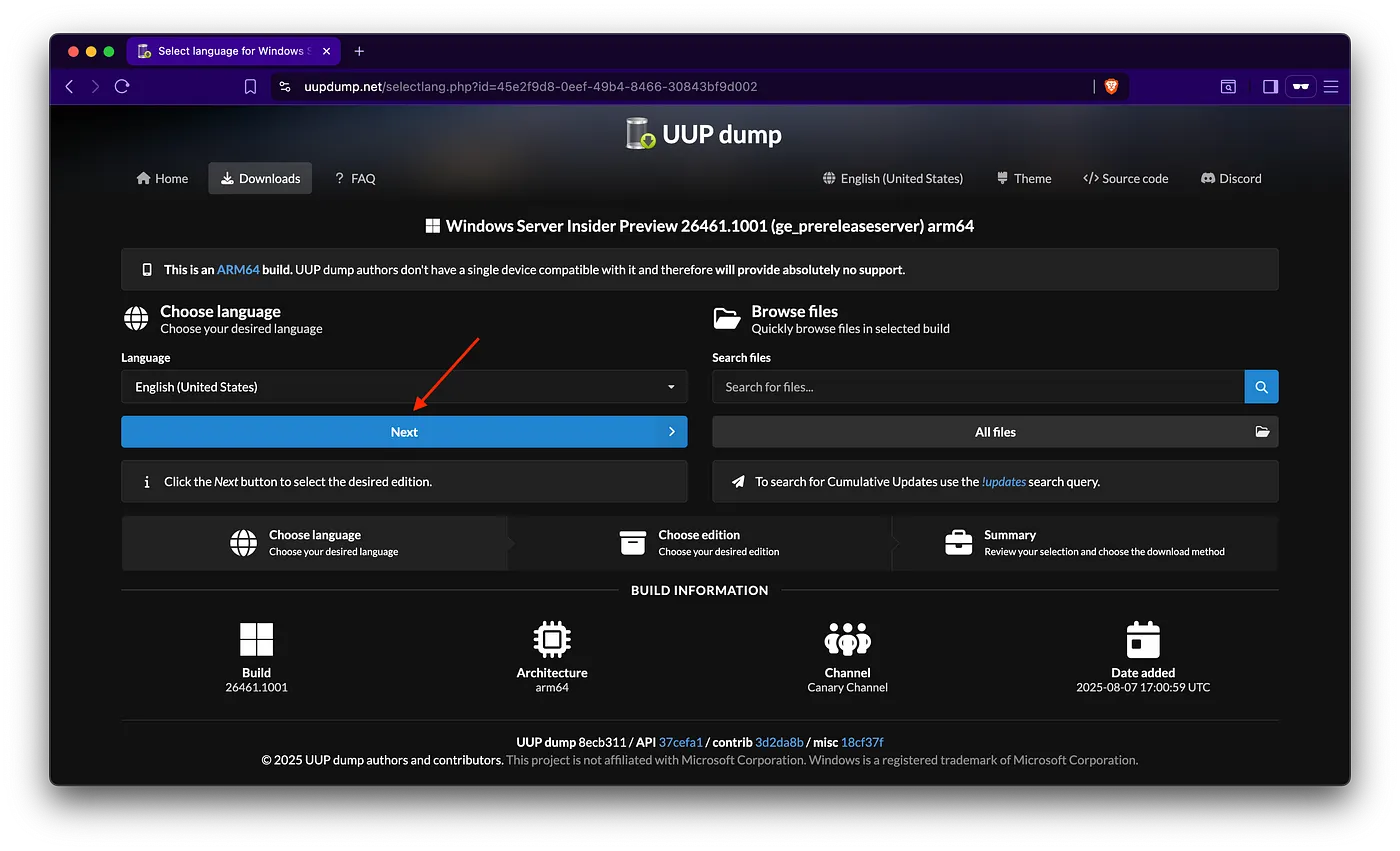
- Select edition, then Next
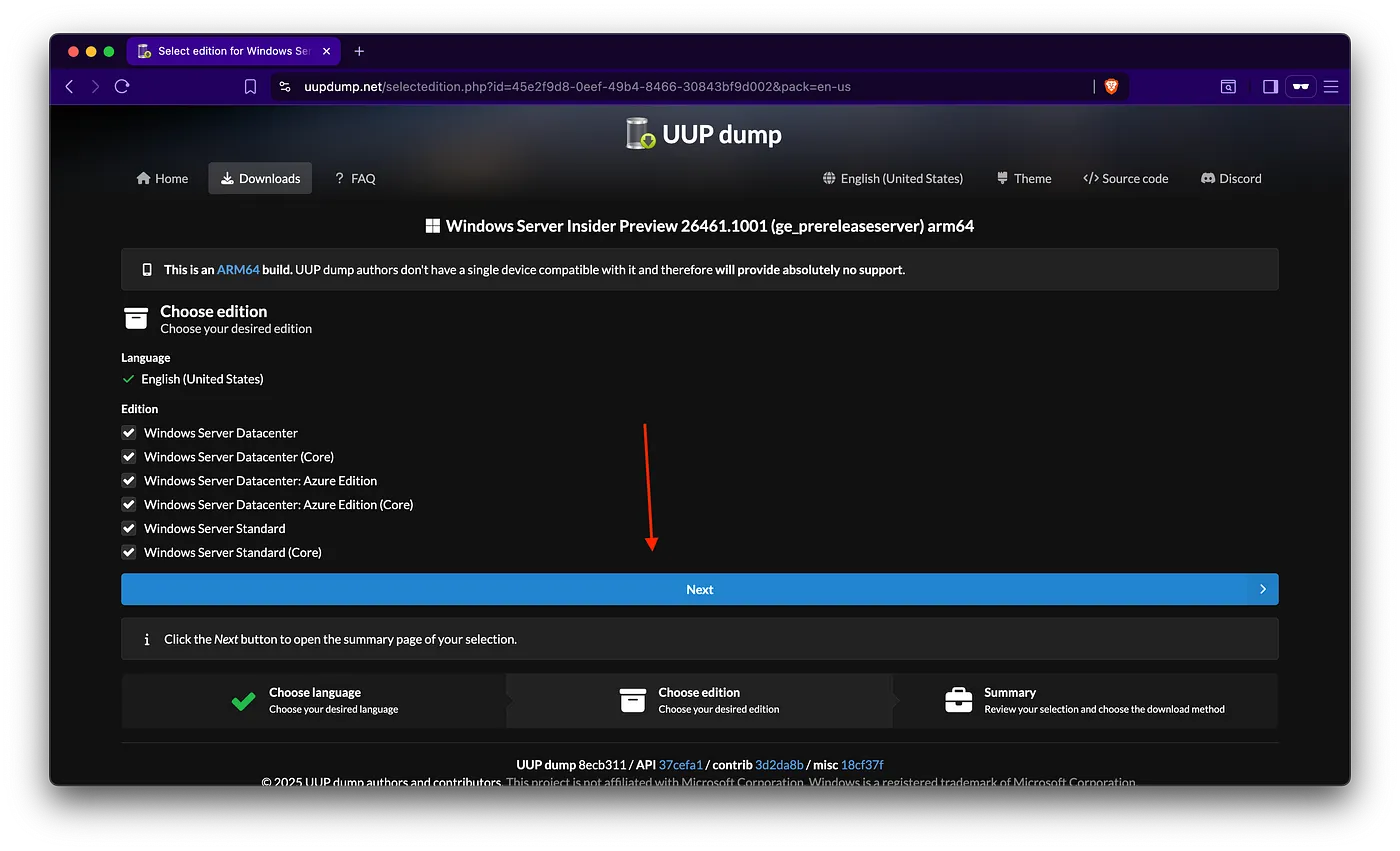
- Create download package
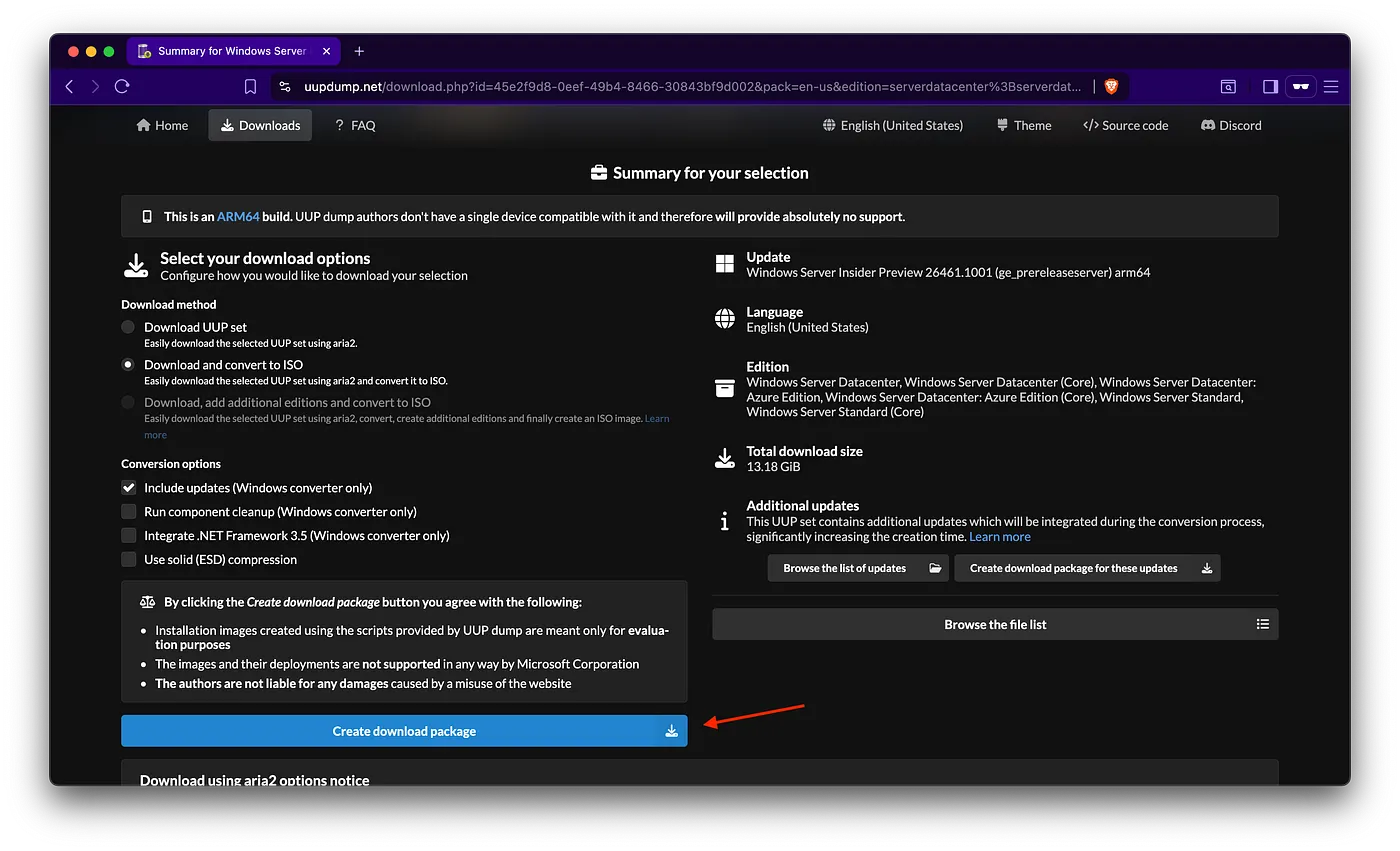
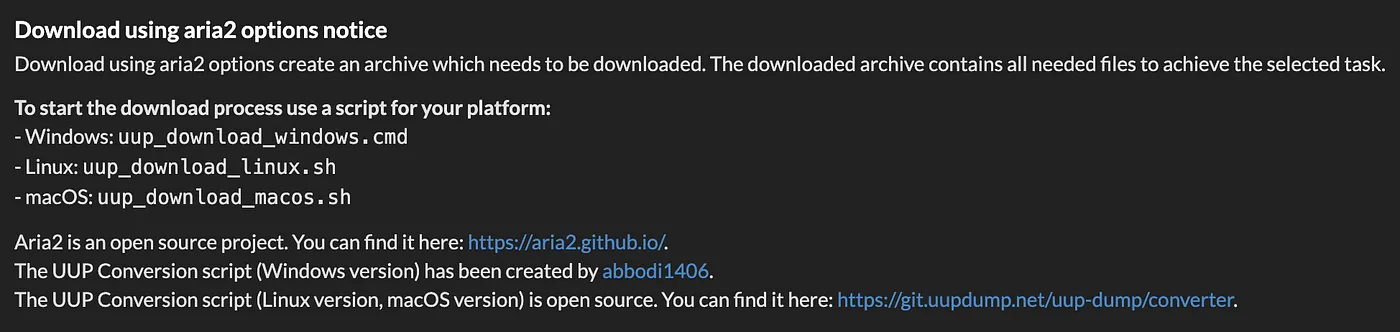
Once you have downloaded the package, you will receive a ZIP file, but this is not yet complete. To complete the download, you will need to use Terminal and follow the instructions under the ‘Create download package’ button until you get the ISO file.
Install Windows Server 2025 in VMware Fusion on Mac
Create a New Virtual Machine in VMware Fusion then add the ISO file. Follow these steps for installation:
- Click add to add new machine
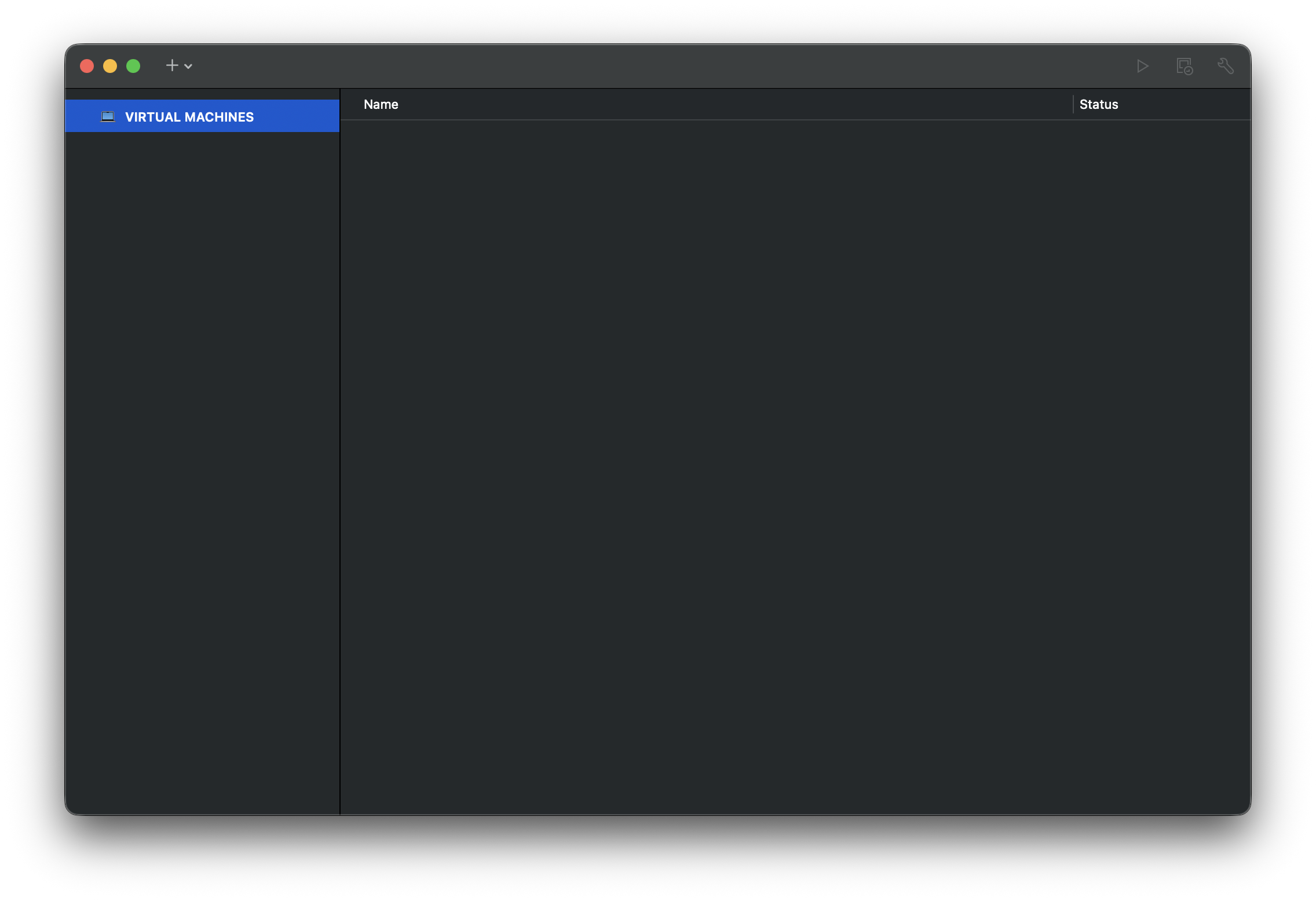
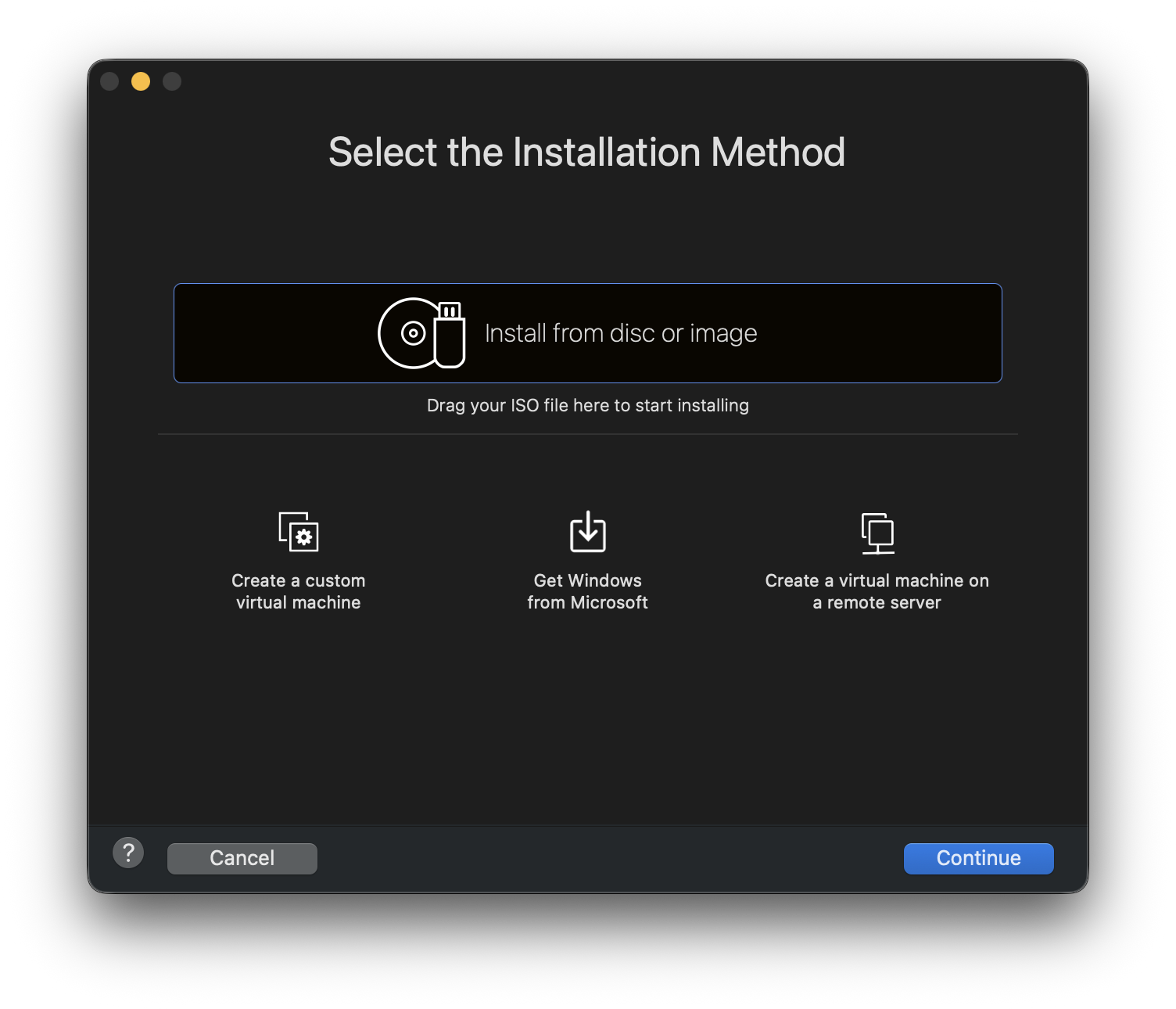
- Select the Installation Method. Click Continue or you can drag and drop the ISO file here
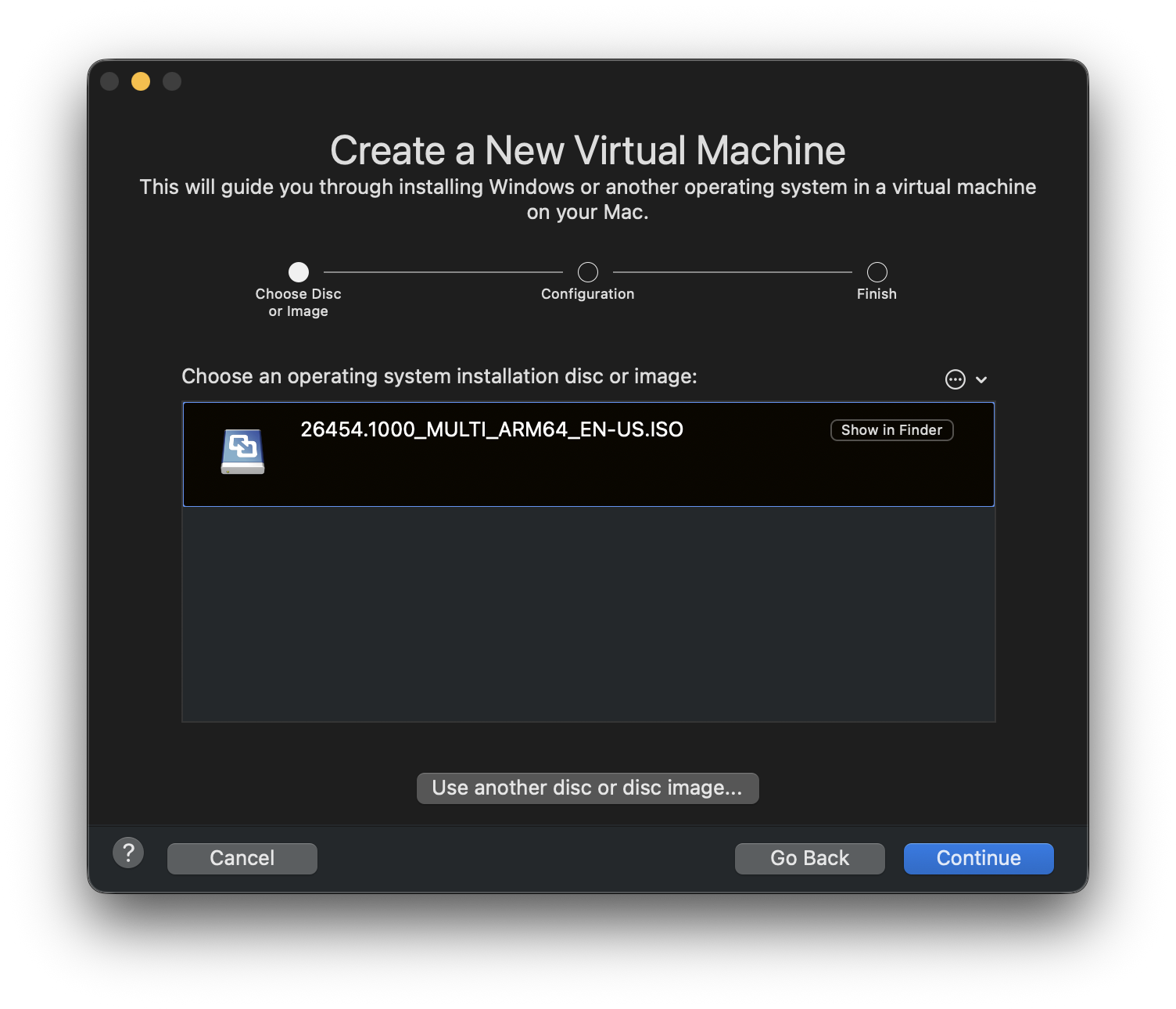
- Create a New Virtual Machine. Click Continue
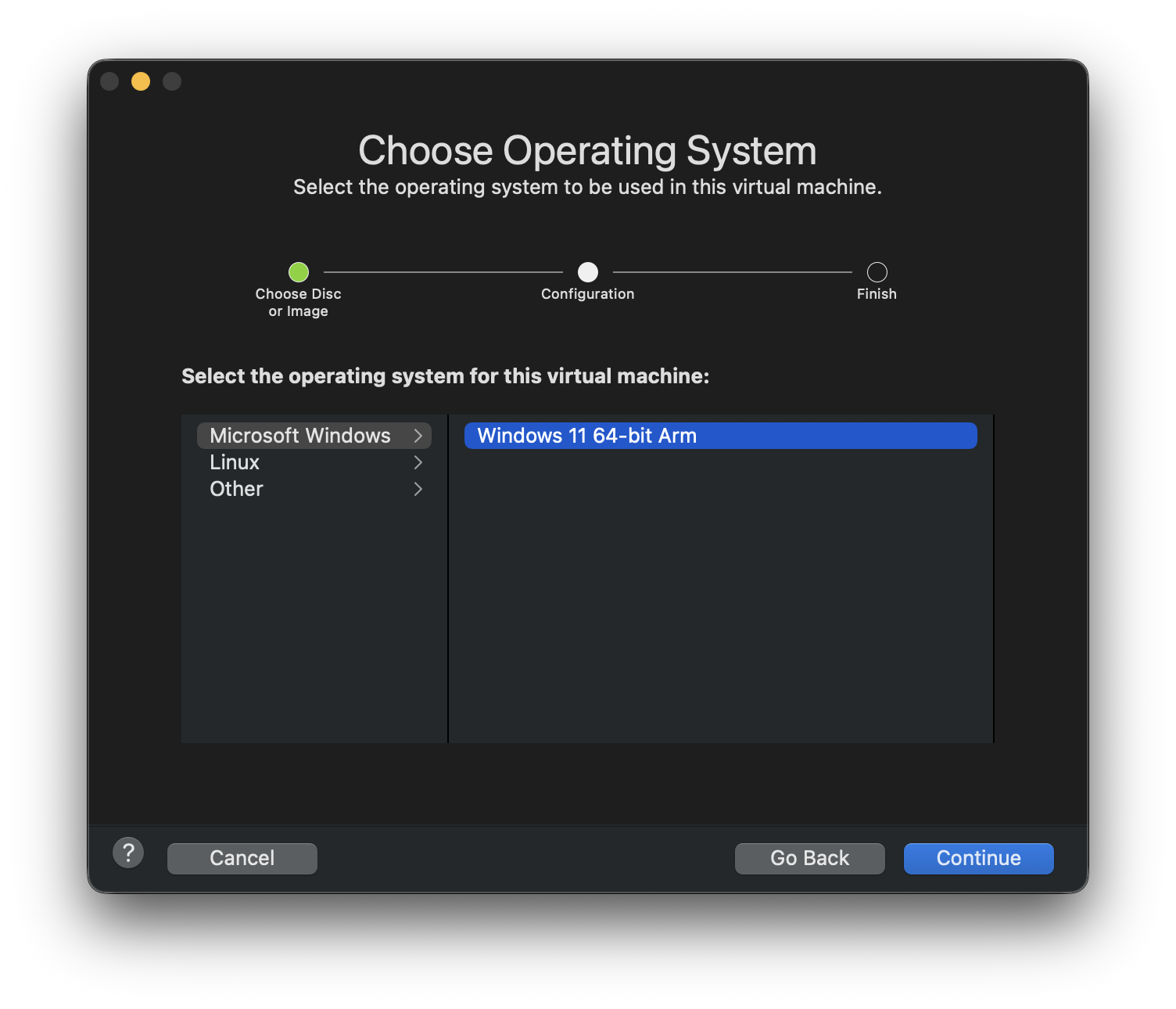
- Choose Operating System. Select “Windows 11 64-bit ARM” then Continue
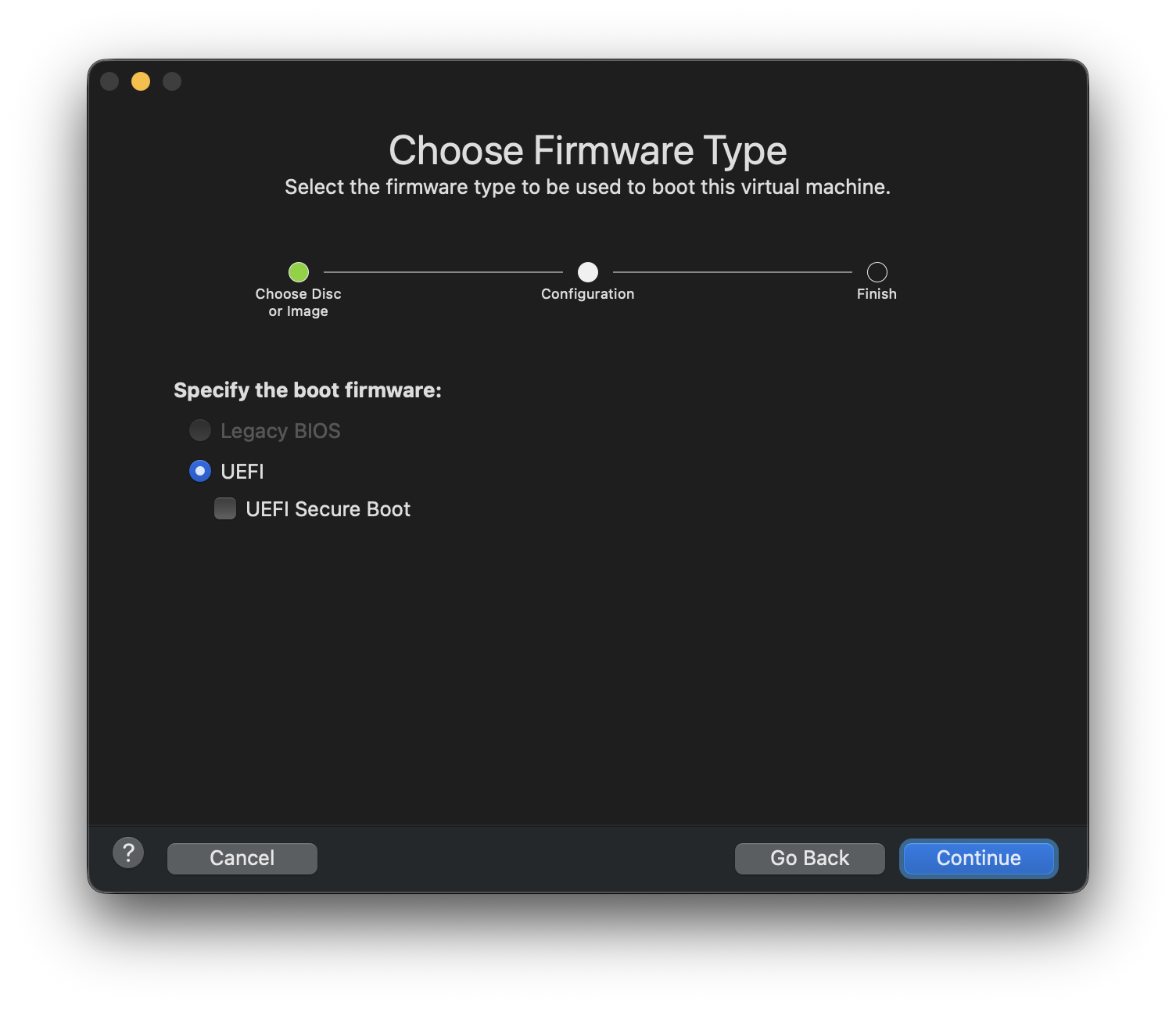
- Choose Firmware Type. This will be automatically because this 64-bit will ran in UEFI mode. Click Continue
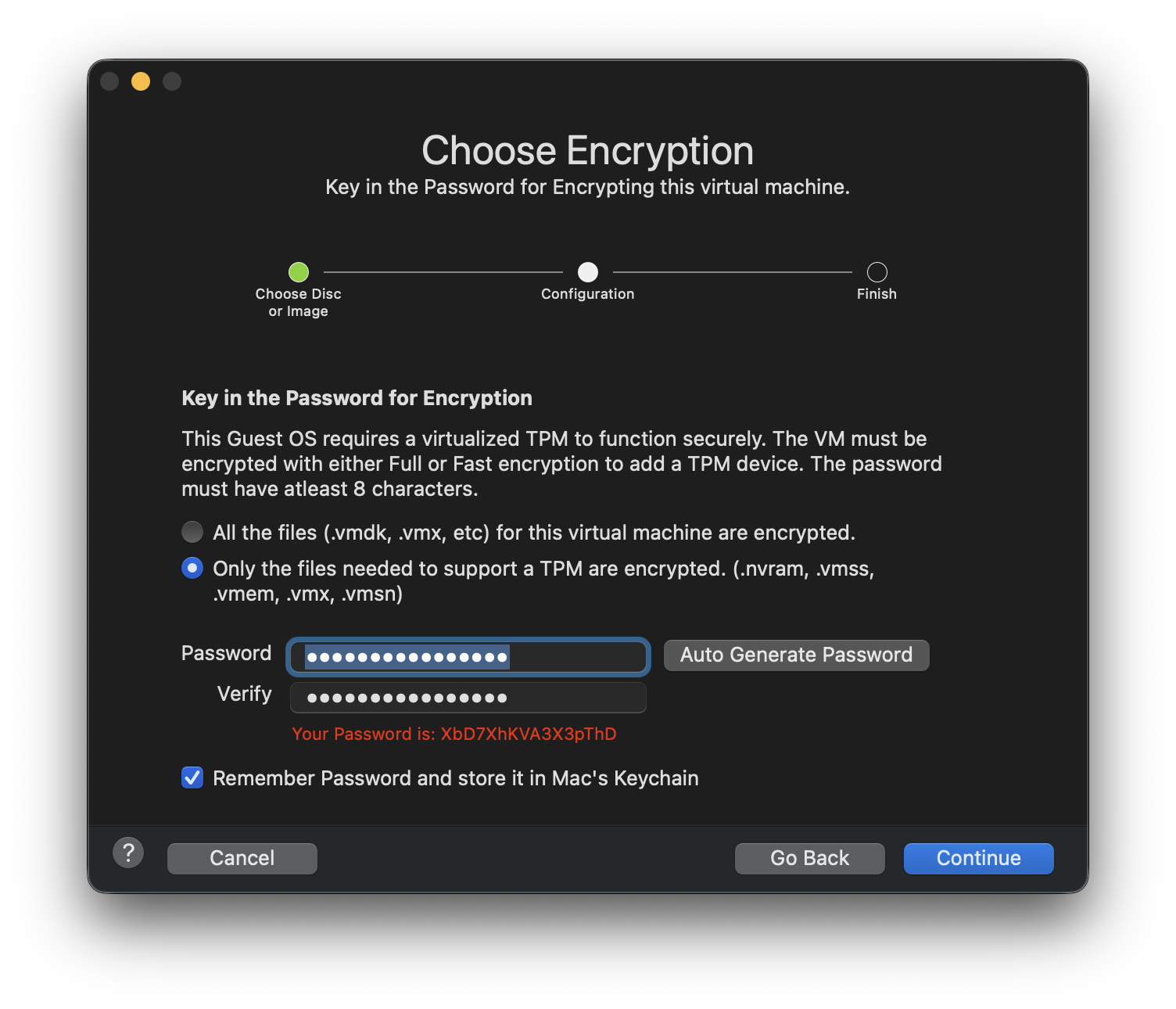
- Choose Encryption. Just generate the password only for trial purpose. Click Continue
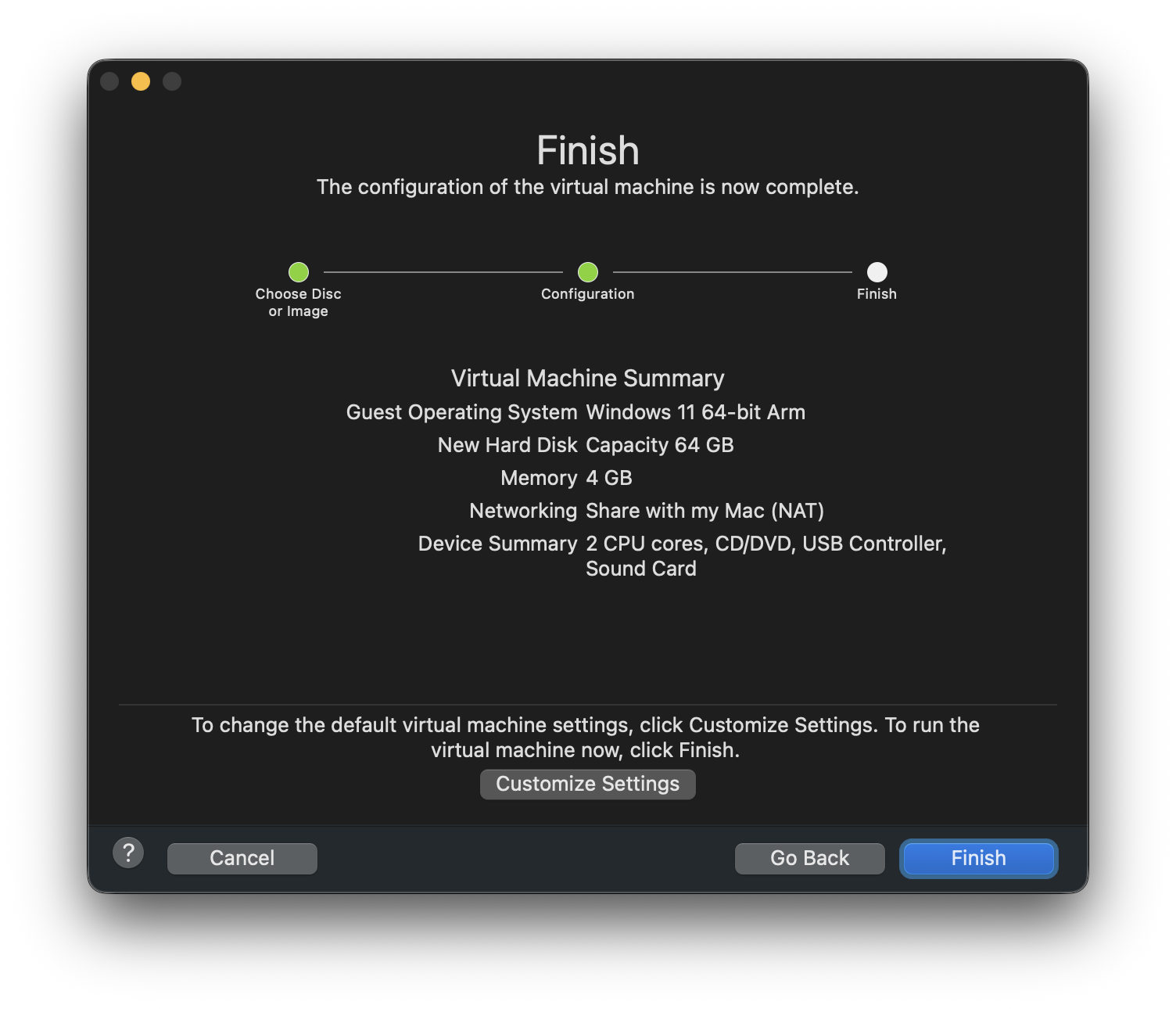
- Finish. Resource you use will appear here. You can change it later in Settings
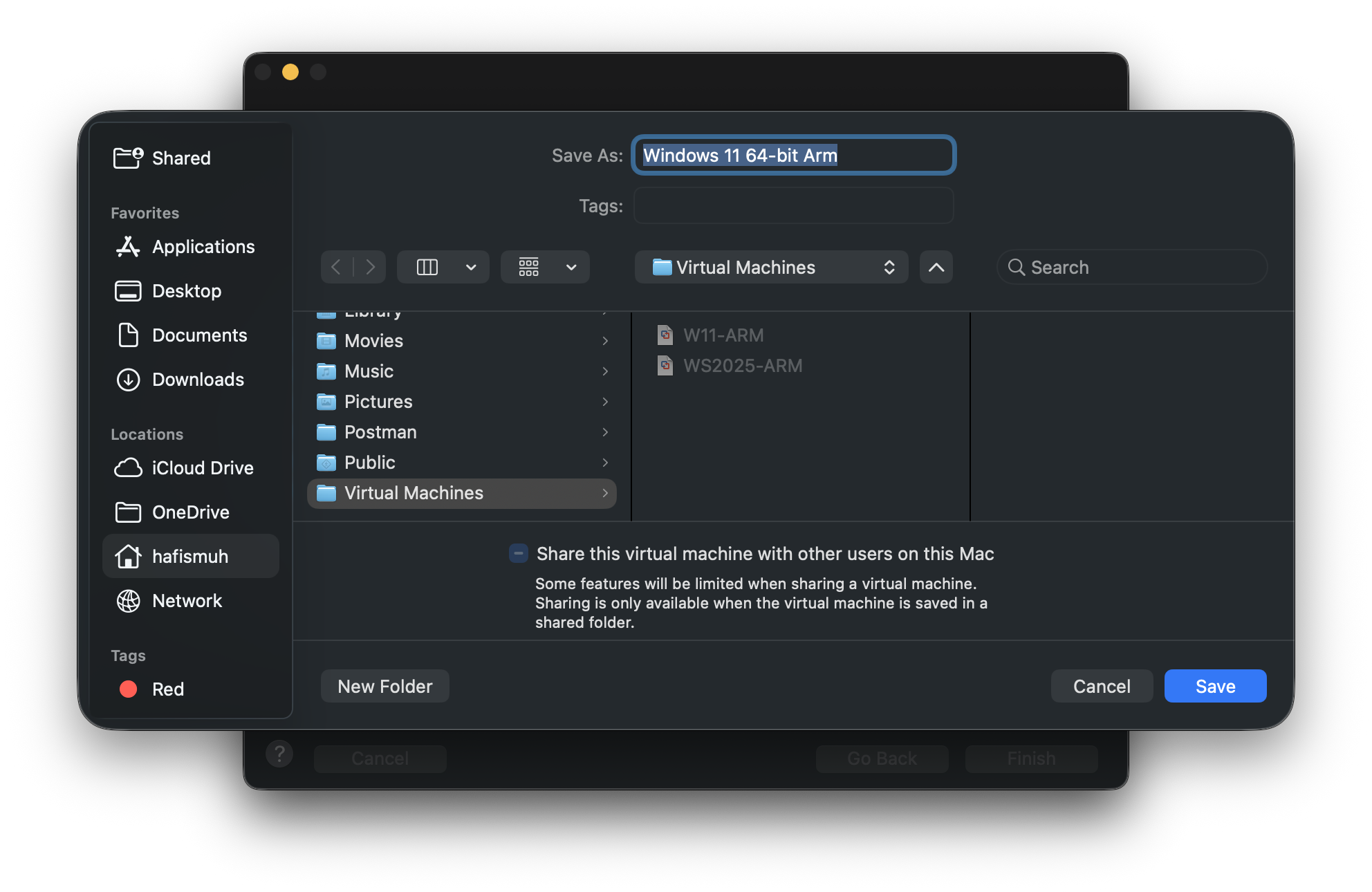
- Save your machine and define the name
- The new machine is ready to start
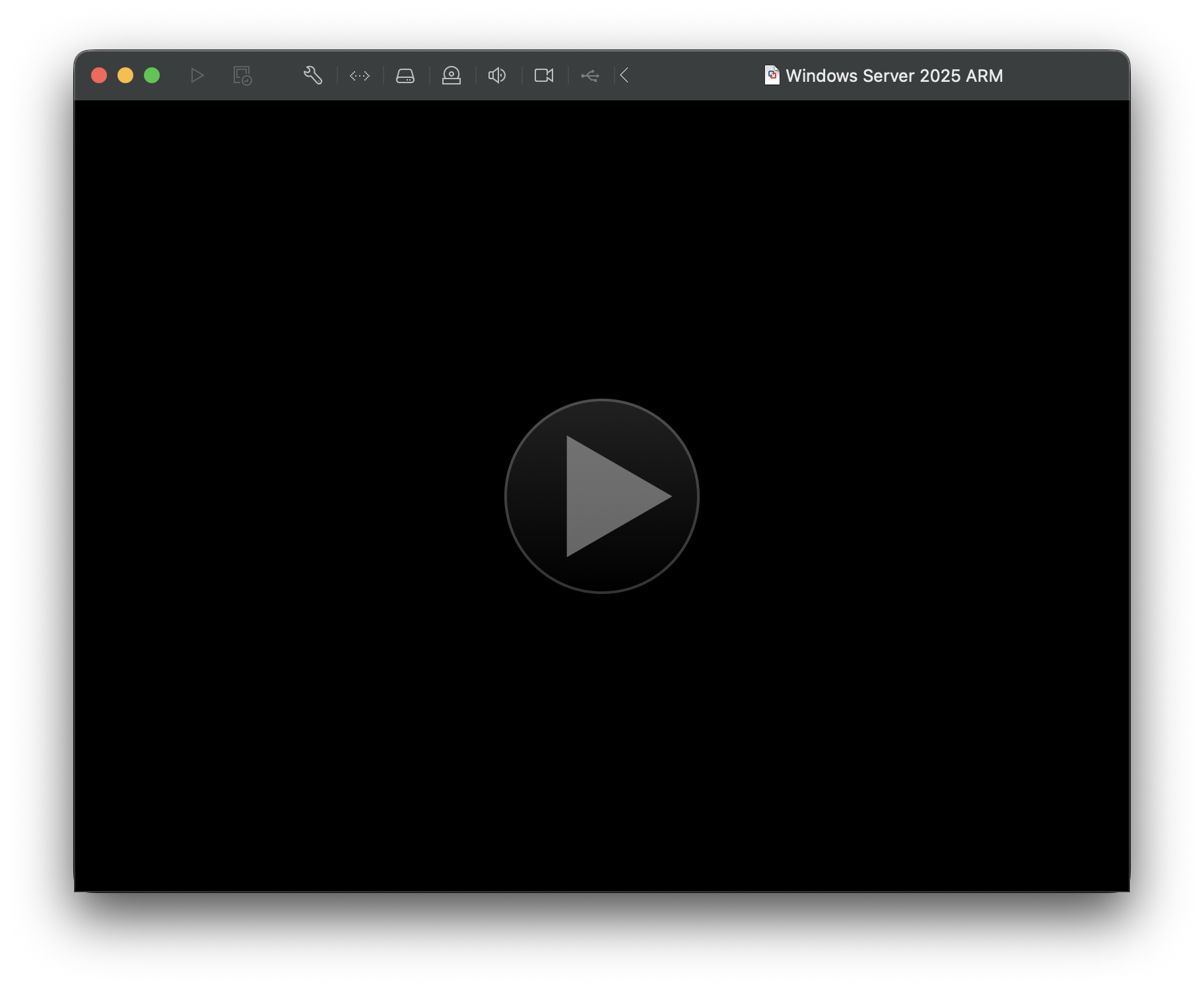
After successfully added a Windows Server to VMWare Fusion, you have to check the settings to ensure the resource you use and this machine will running after you start up the machine.
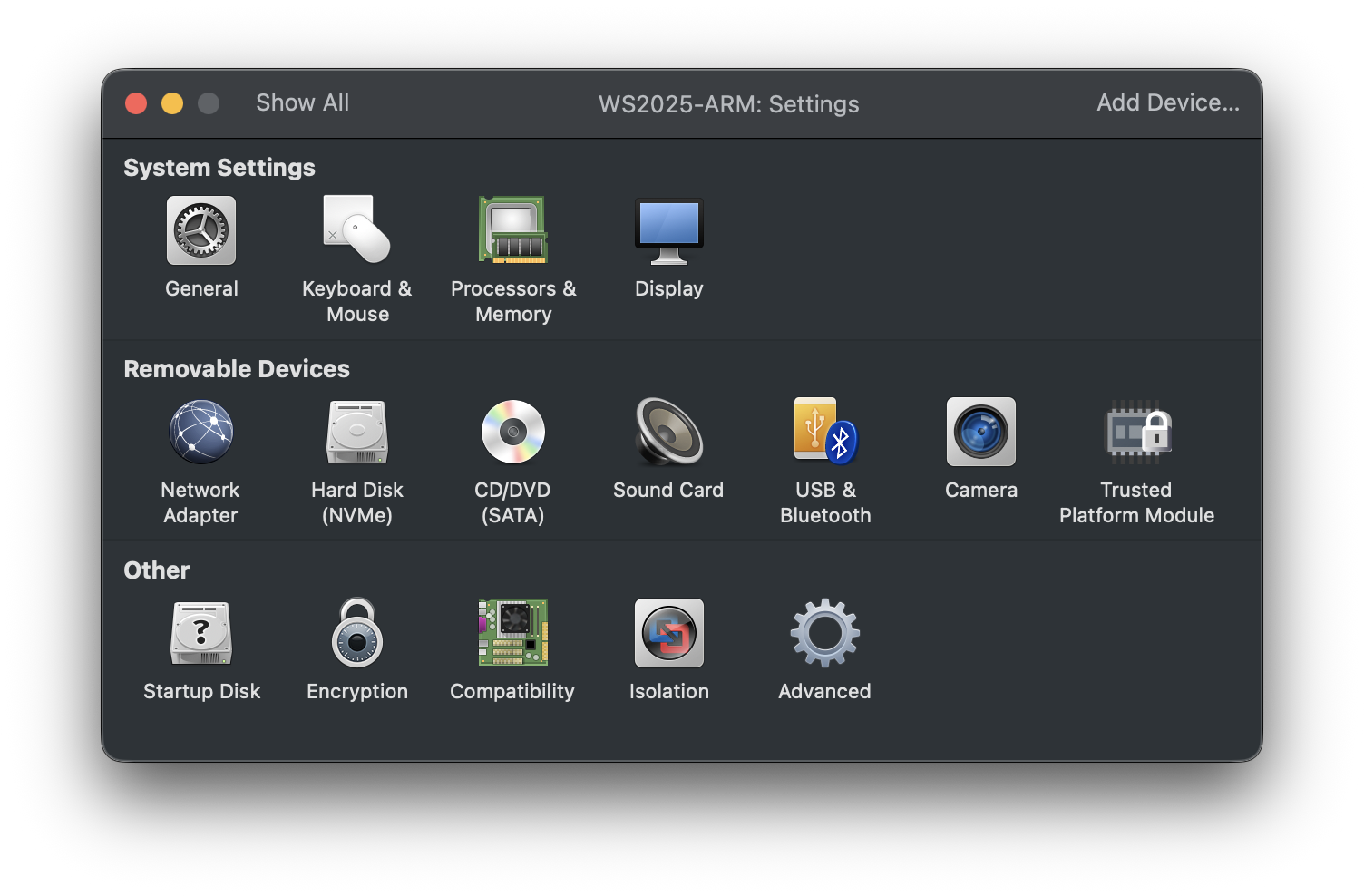
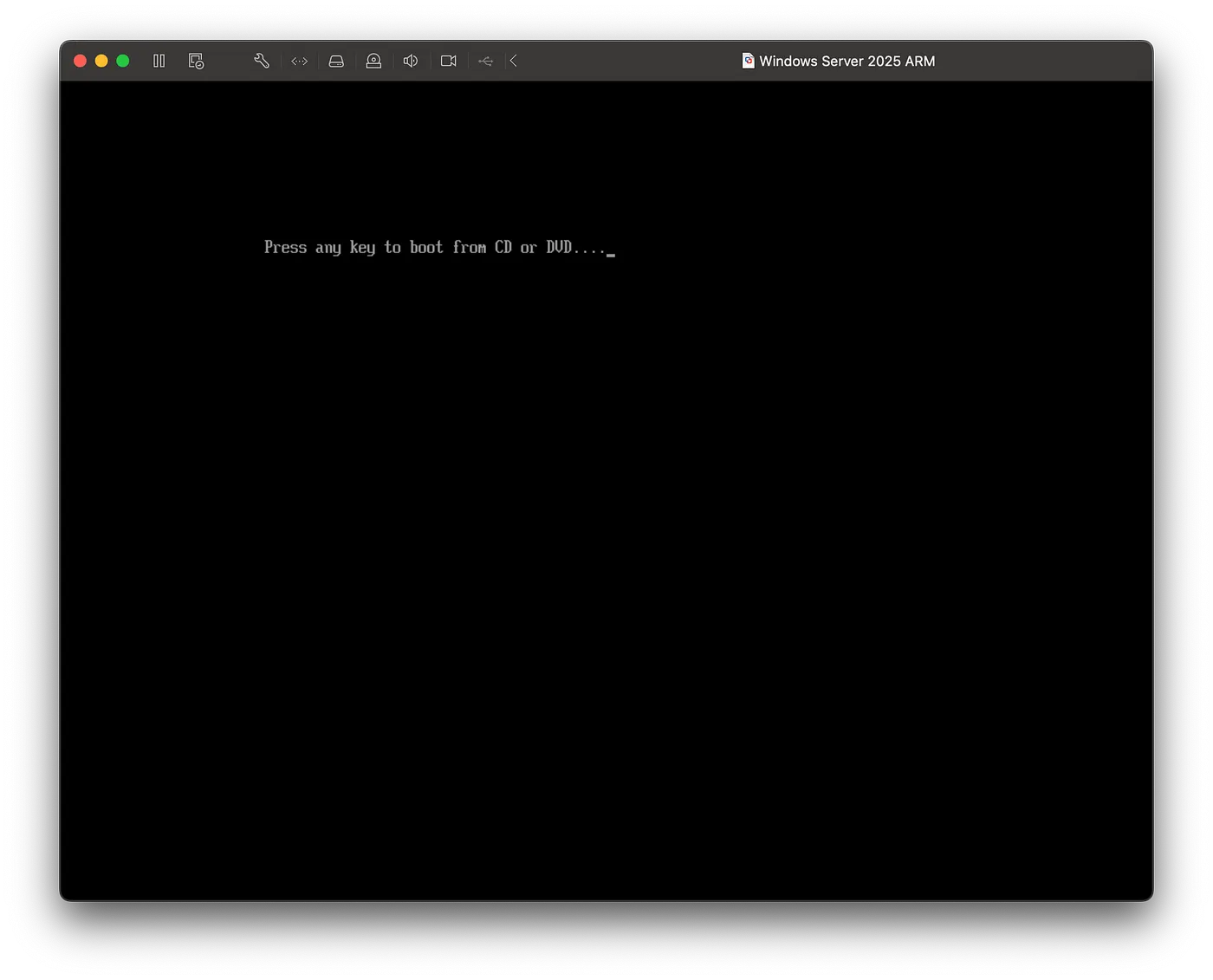
- Press any key when this screen appear when you start up the machine
- Select your language
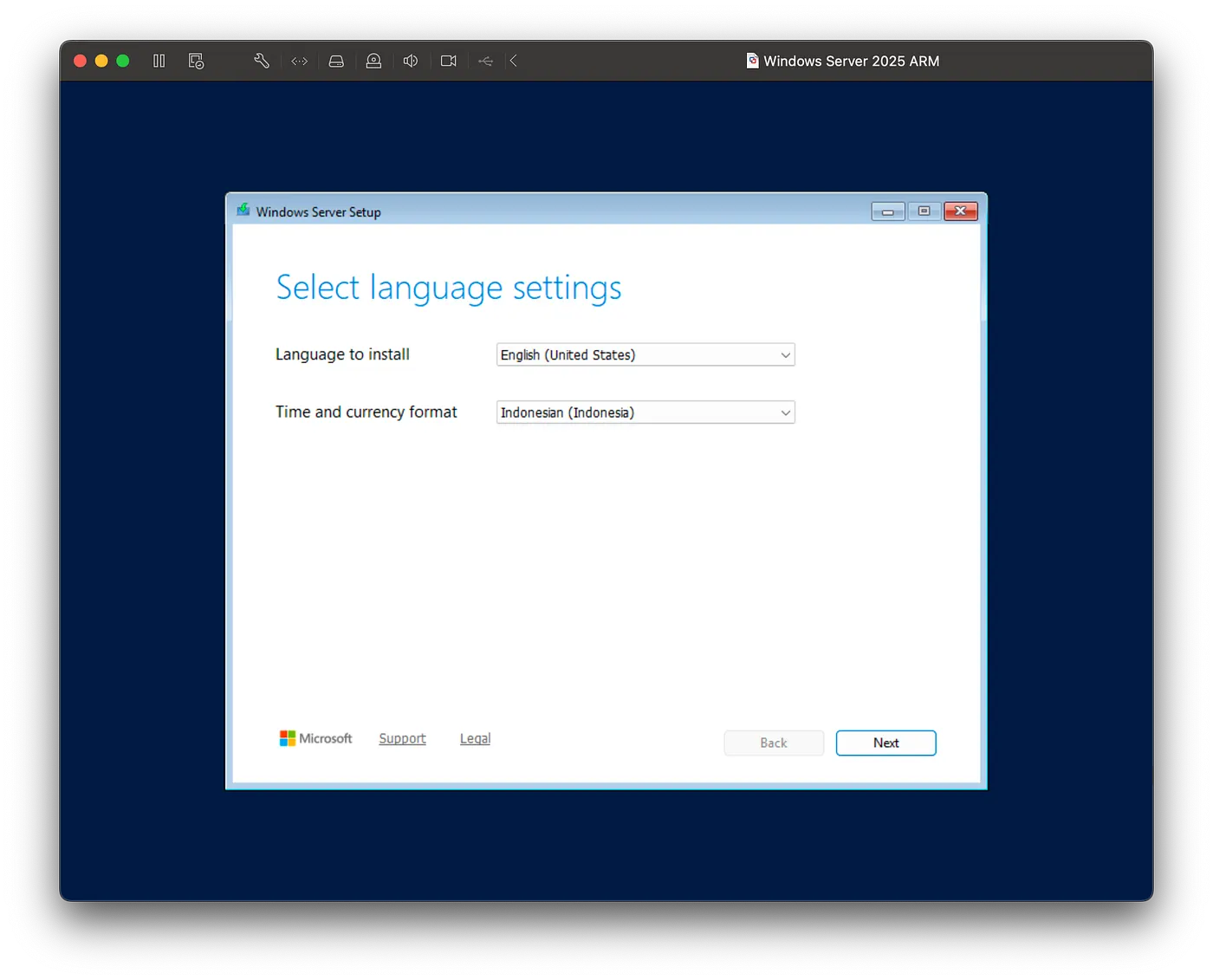
- Select your keyboard
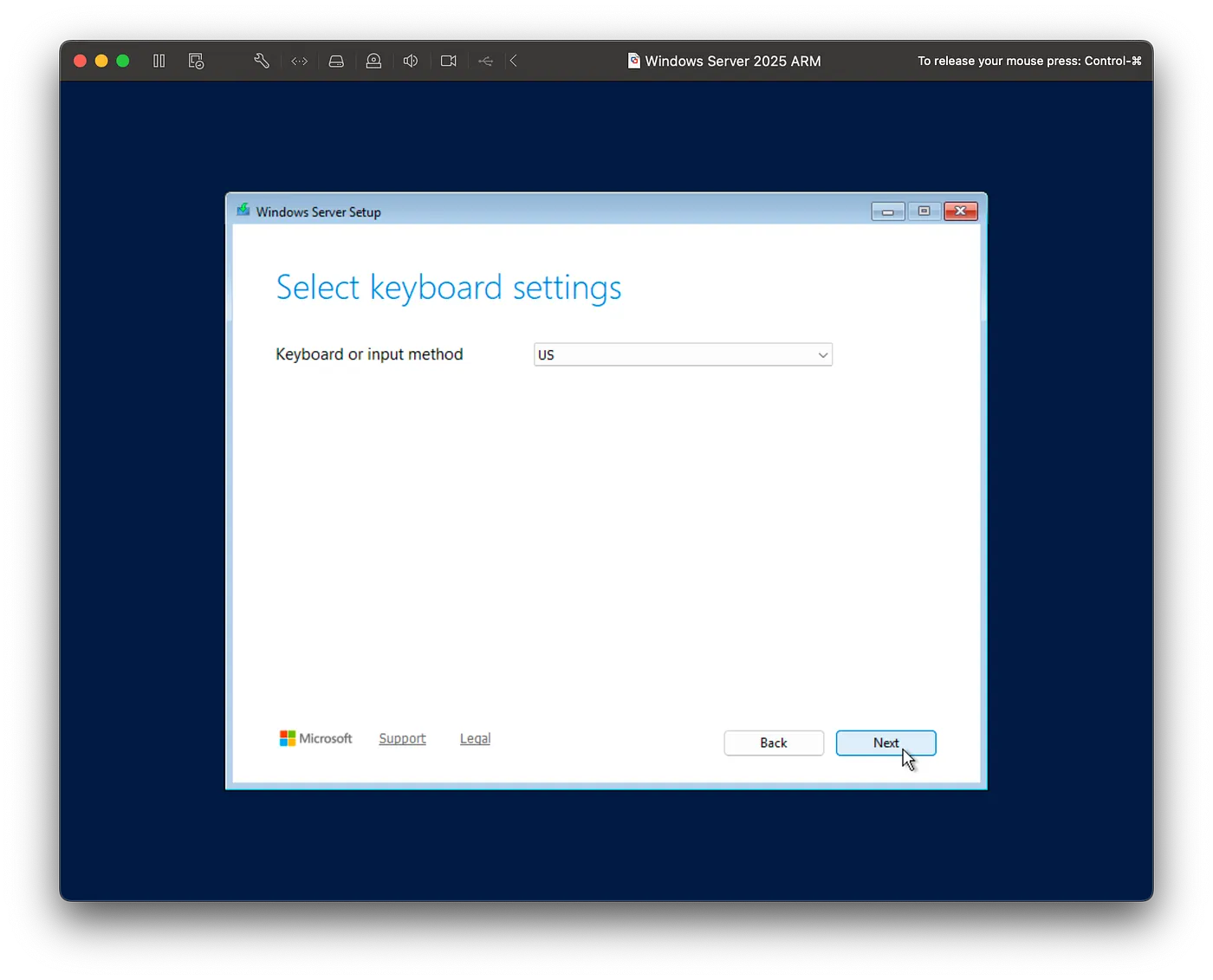
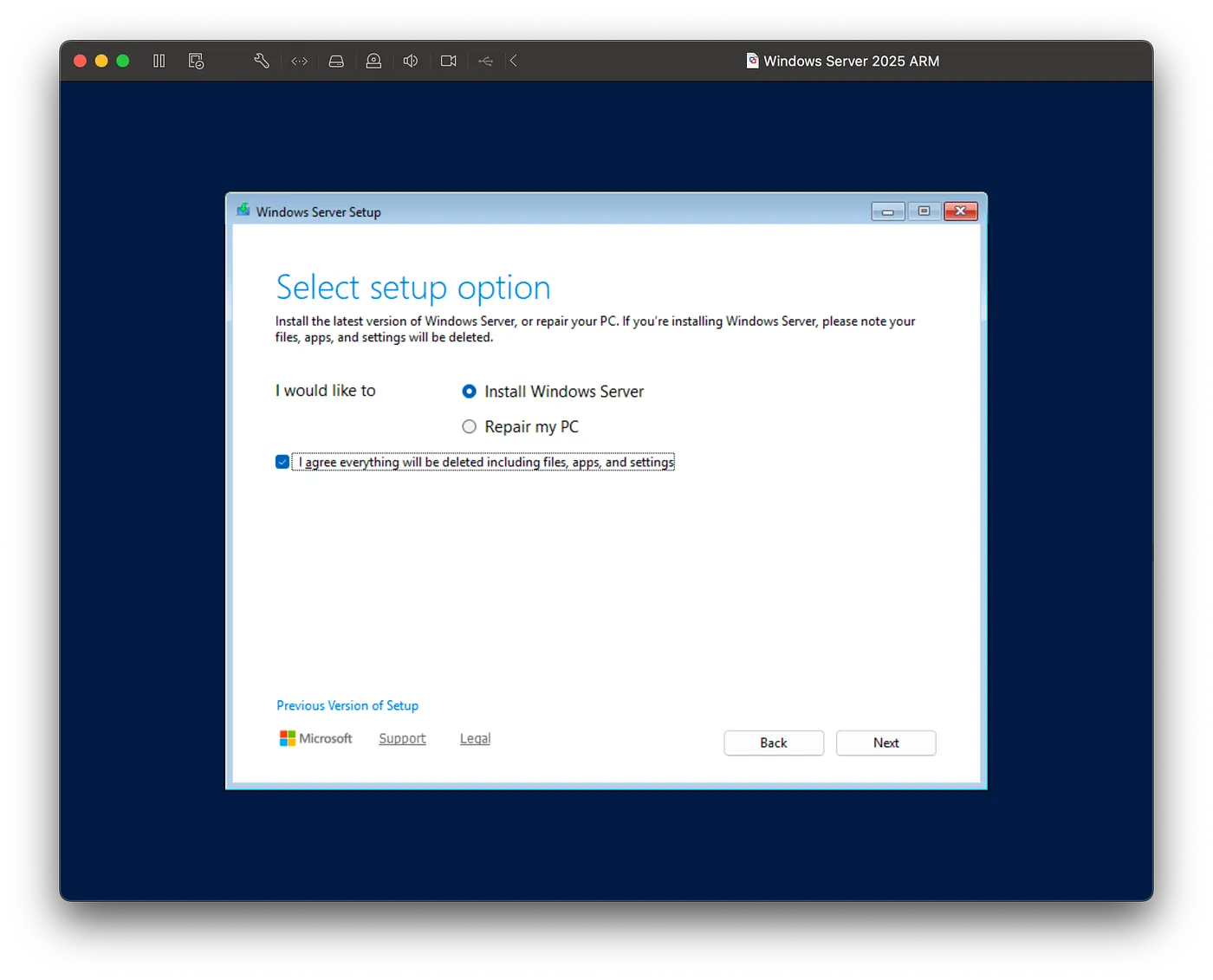
- Choose Install Windows Server
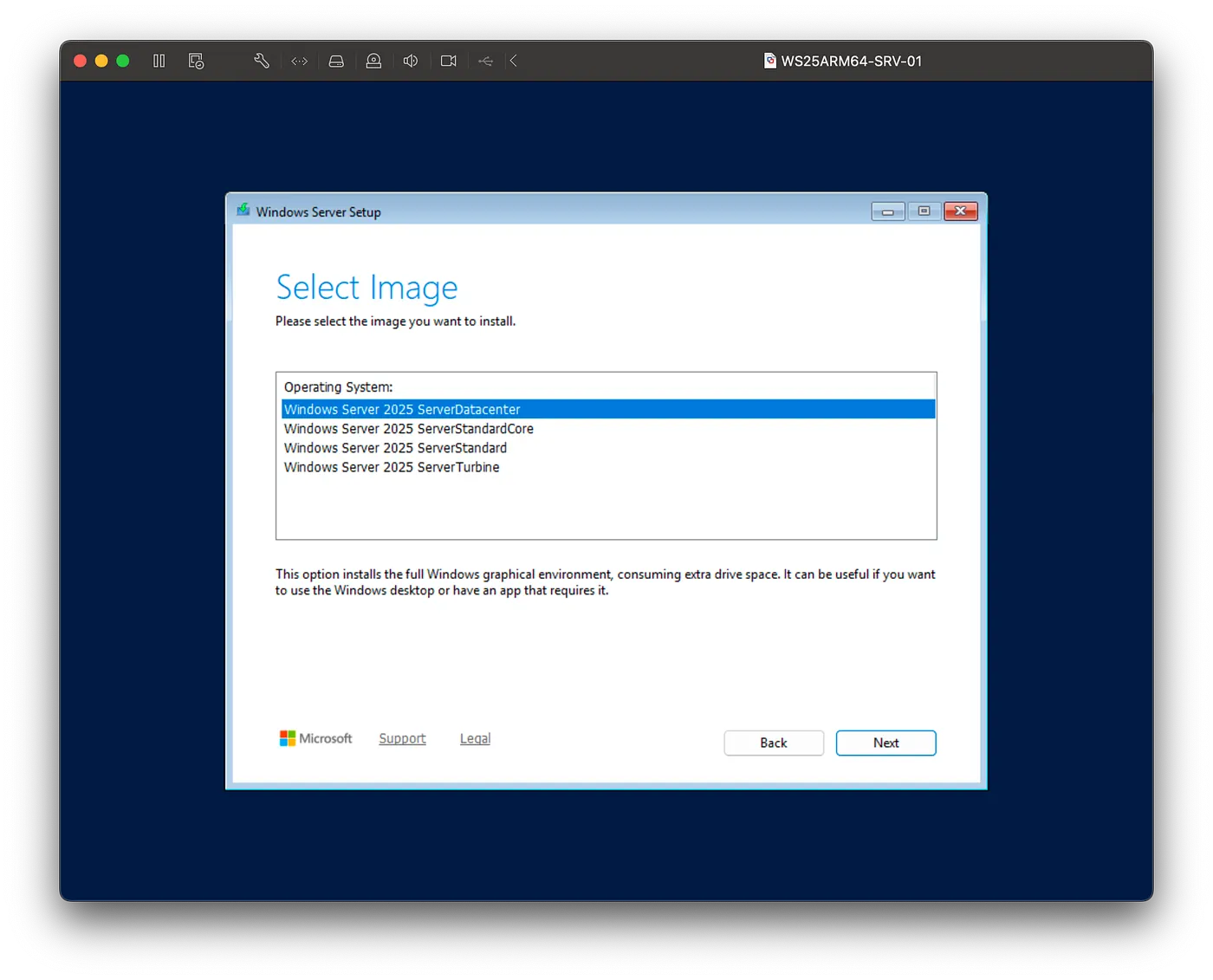
- Select Image: Windows Server 2025 Server Data Center
- Accept the agreement

- Select disk location
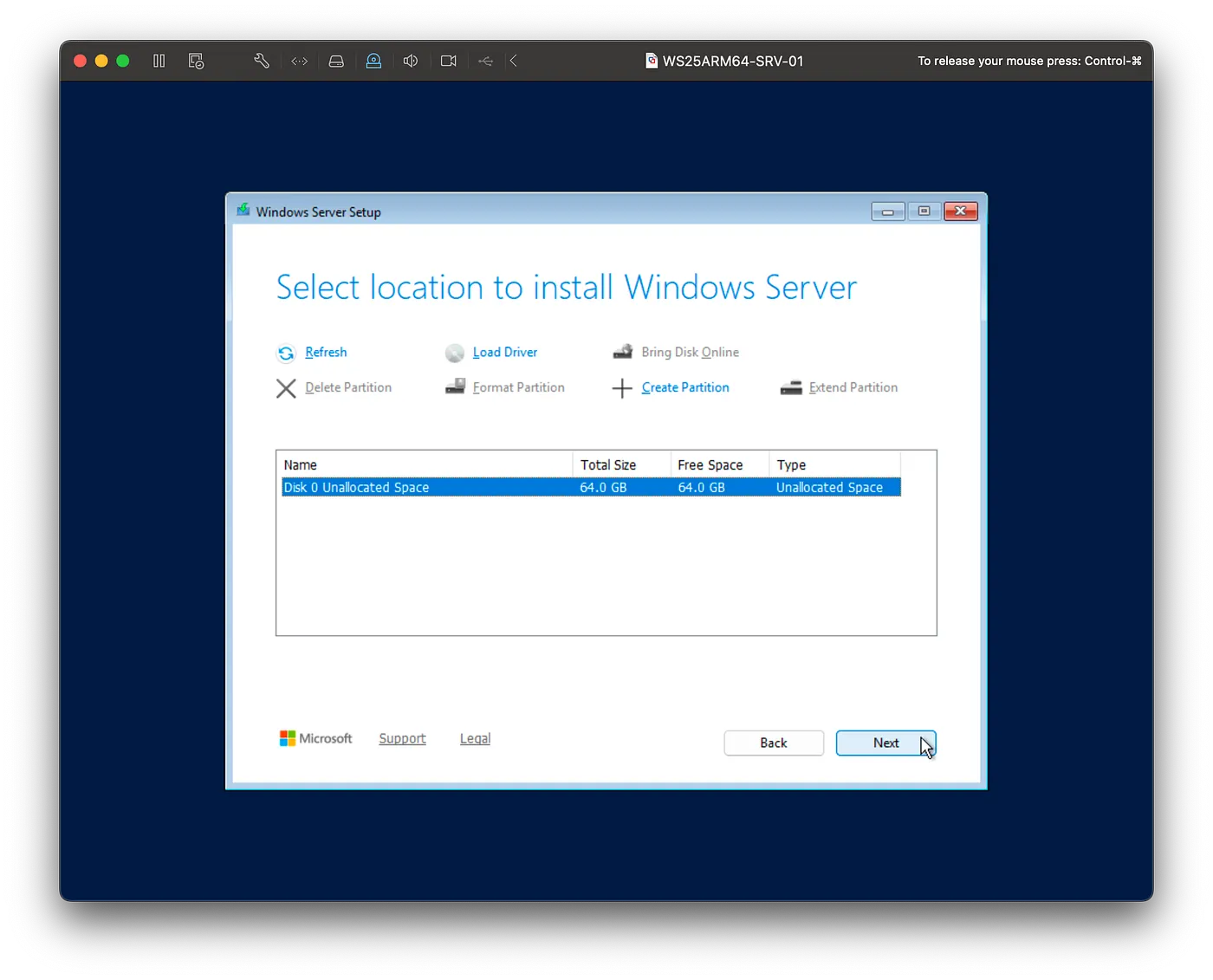
- Click Install
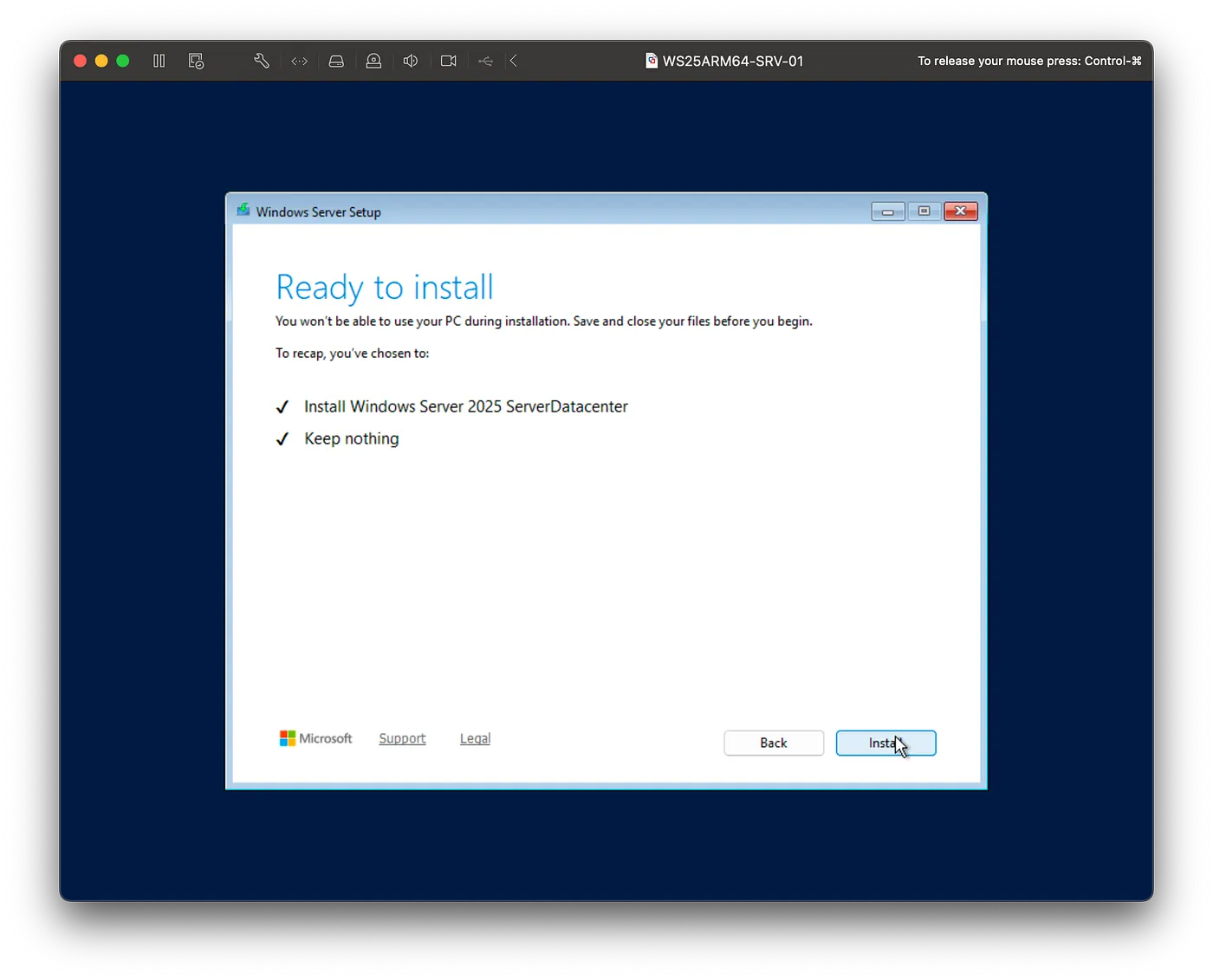
- Please wait until the installation is complete

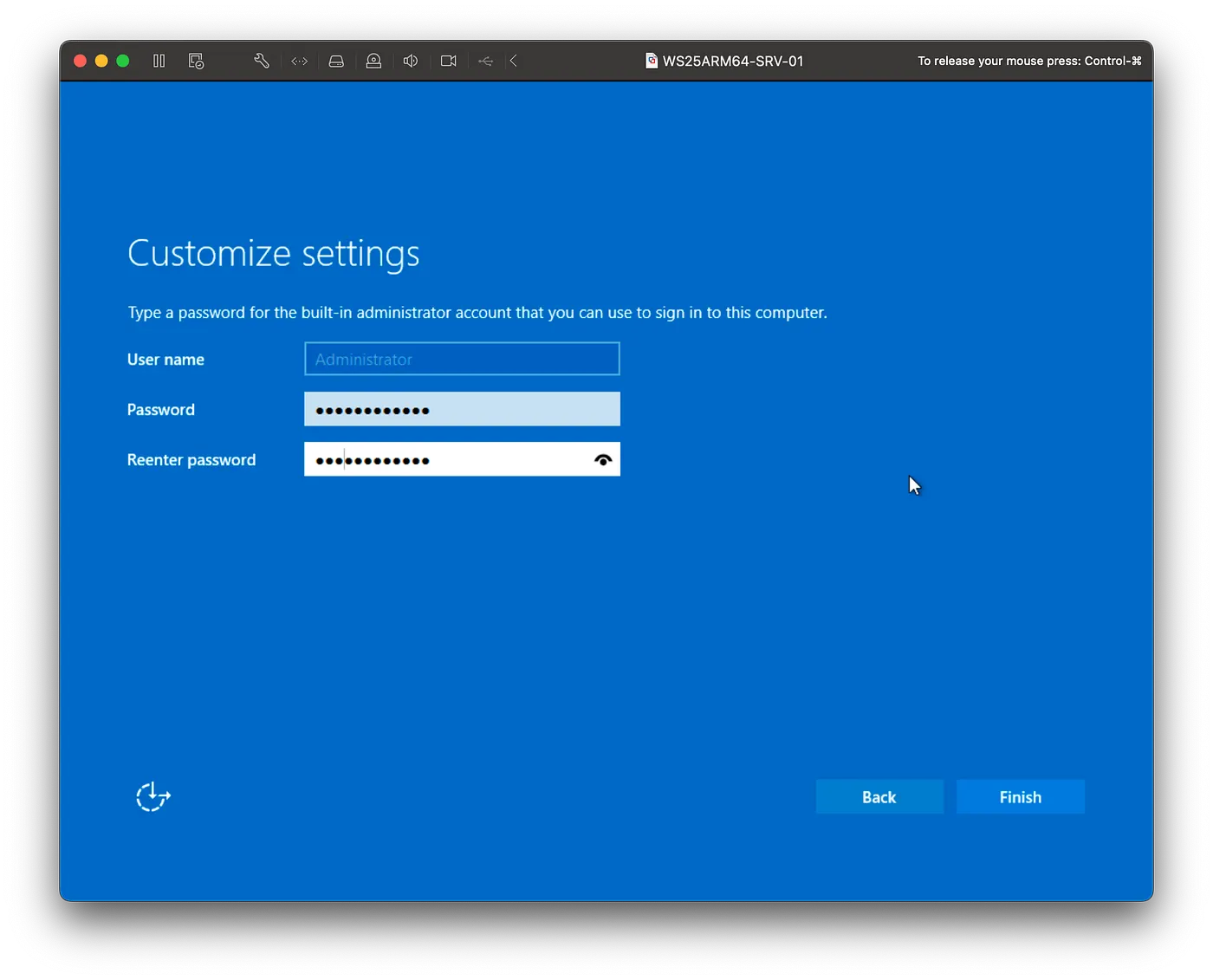
- Define your password
Troubleshoot
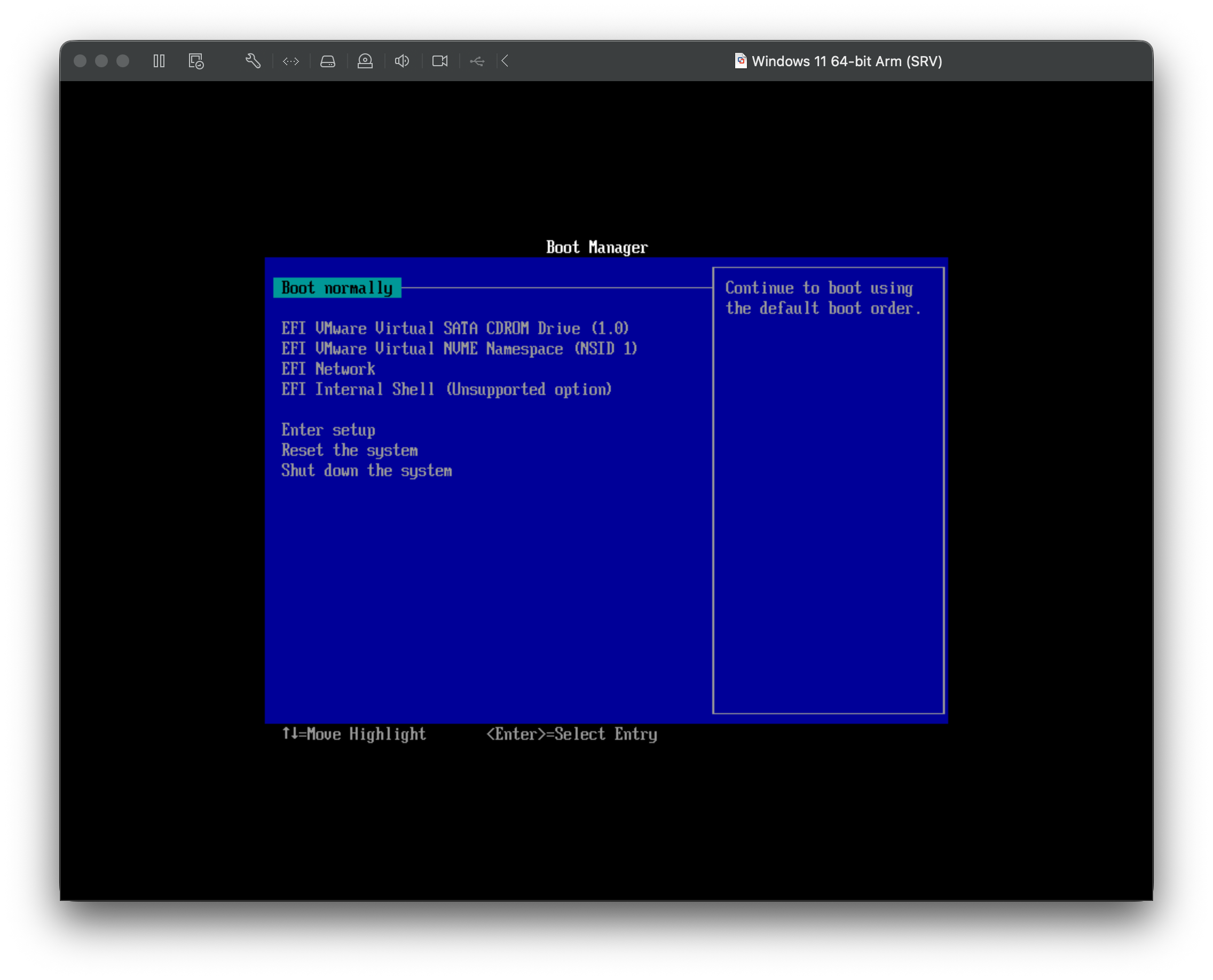
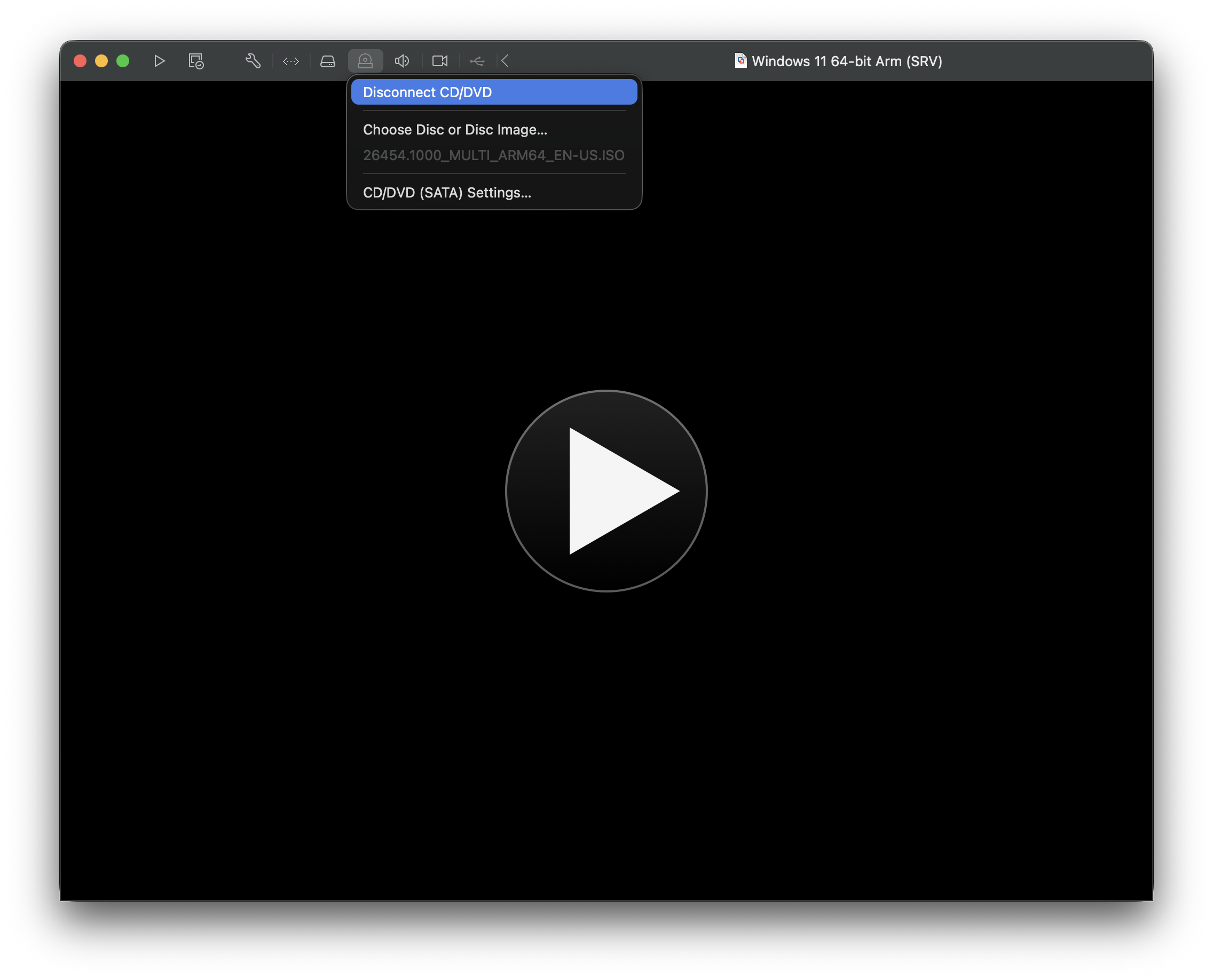
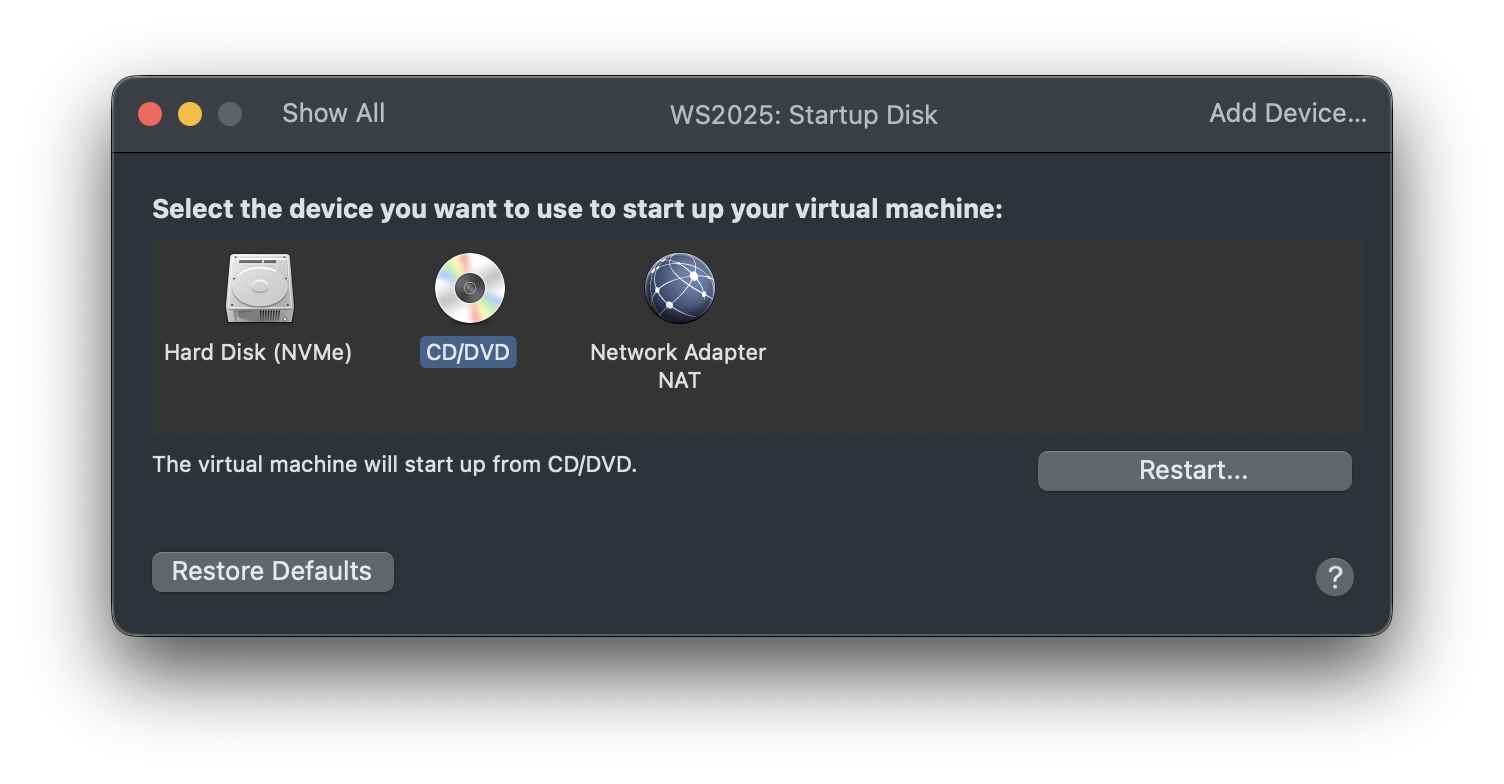
When your machine didn’t start, try to reconnect CD/DVD because the correct boot is CD/DVD and make sure you select the correct ISO file.